


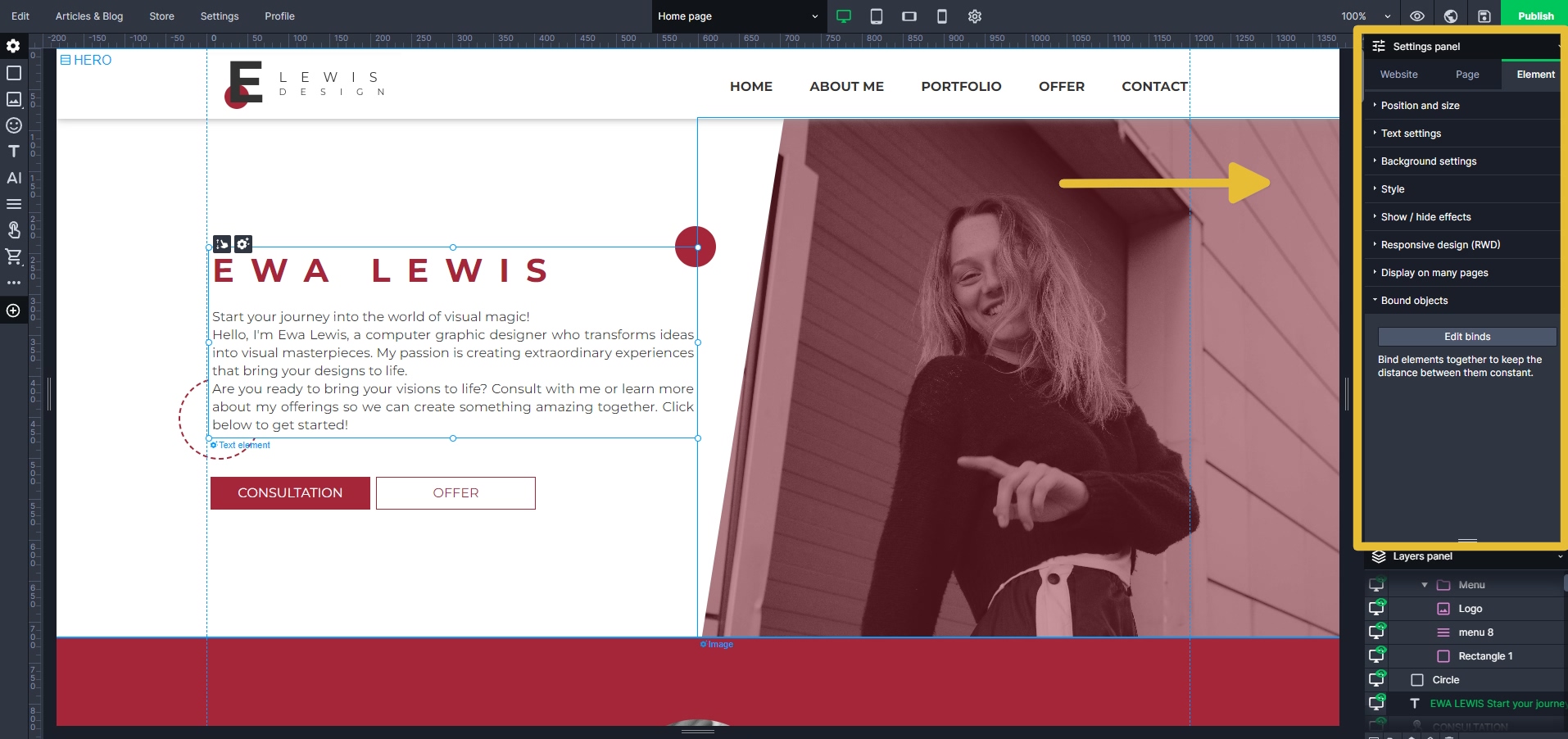
The settings panel empowers you to modify different sections of your website, conveniently organized into tabs for easy access and management.
Website Settings #
The first tab, named „Website,“ encompasses settings for your entire website, including all subpages.
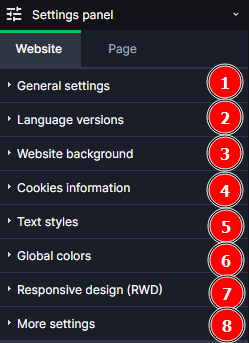
- General settings – in this tab we can manage subpages, rename your site and add a custom Favicon.
- Language versions – add multiple language versions to your site.
- Page background – freely change the background of your page. Changing the background here will also change the background on other subpages.
- Cookies information – in this tab we can edit and change the display of information about cookies that your site uses.
- Text styles – define your text styles in this tab; it helps to keep the page consistent.
- Global colors – set the colors of your page so that you can change the colors globally.
- Responsive design (RWD) – if you made a mistake while creating a version of your site in mobile views, with this function you can reset the given mobile mode to the original view.
- More settings – in this tab, we can add HTML, CSS, JS code to the head section of the entire site, change settings for: quick page display, showing and hiding comment bar, enabling and hiding phone app (PWA), enabling and disabling photo download hindrance, and showing and hiding snow on the page.
Page Settings #
The Page settings allow you to take control of the whole page you are working on. They are only activated on actual pages, but not on blog articles.
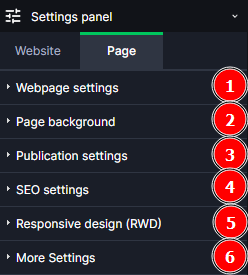
- Webpage settings – in this tab we can manage the subpage, change the name of your page and add a custom Thumbnail.
- Page background – freely change the background of your subpage.
- Publication settings – change the visibility of your subpage on the web, you can set the page to „For all“, „Not available“, „For logged in“, „Password protected“.
- SEO settings – this tab allows us to add meta title and meta description to the page, which allows us to better position the page in search engines.
- Responsive design (RWD) – if you made a mistake when creating a mobile view version of your site, with this feature you can reset the selected mobile mode to the original view for the selected page.
- More settings – in this tab we can add HTML, CSS, JS code to the head section of a given sub-page, and decide whether editors when logged into the CMS will be able to edit the content of this page.
Element Settings #
Edit the appearance of the element you have added to your site. There are a bunch of elements that will enable different settings for each. Check out the elements section of this knowledge base to learn more.
Group Settings #
The Advanced Builder in Sitedu.de Website Builder provides a useful feature called Group Settings. This allows you to group elements together and apply settings to them as a whole. Here’s a brief overview of what you can do with Group Settings:
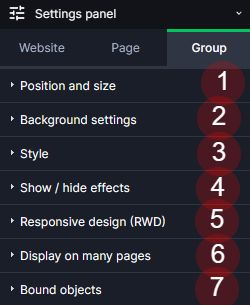
- Position and Size: Adjust the position and size of the grouped elements together. This ensures consistency in design and layout across your website.
- Background Settings: Apply a background color or image to all elements in the group. This can help to visually unify the grouped elements or make them stand out from the rest of the page.
- Style: Apply a consistent style to the grouped elements, including border, rounding, shadow, opacity, and margin settings. This can help to create a cohesive look and feel for your website.
- Show/Hide effects: Control the visibility of the grouped elements, allowing you to create dynamic content that can be shown or hidden based on certain conditions or user interactions.
- Responsive Design: Restore modified settings in case a design looks broken on mobile. This ensures your website looks great and functions well on all devices.
- Display on many pages: Show one element on multiple pages to speed up page creation and make it easier to modify later. This is particularly useful for elements like headers, footers, and navigation menus that appear on every page.
- Bound objects: Bind elements together to keep the distance between constant. This can help to maintain a consistent layout and spacing across your website, regardless of the device or screen size.
Article Settings #
The article settings are only activated on your blog articles or product pages.
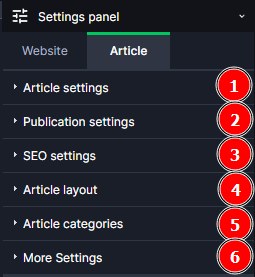
- Article settings – go to article settings, rename, duplicate or delete and add a custom Thumbnail.
- Publication settings – change the publication date of the article and change its accessibility, you can set the article to „For all“, „Not available“, „For logged in“, „Password protected“.
- SEO settings – this tab allows us to add meta title and meta description to the page, which allows us to better position the page in search engines.
- Article layout – from the settings panel, change the article pattern to be used by the article.
- Article categories – article categories help us to maintain order and the process of displaying articles in the List of articles – newsfeed.
- More settings – in this tab we can add HTML, CSS, JS code to the head section.


