


To configure your email account in macOS, use the following mail client configuration:
Configuration of your mailbox in Mac OS #
1. Open mail program on your MacBook.
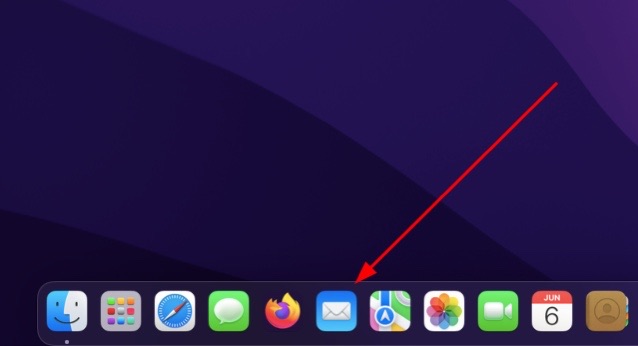
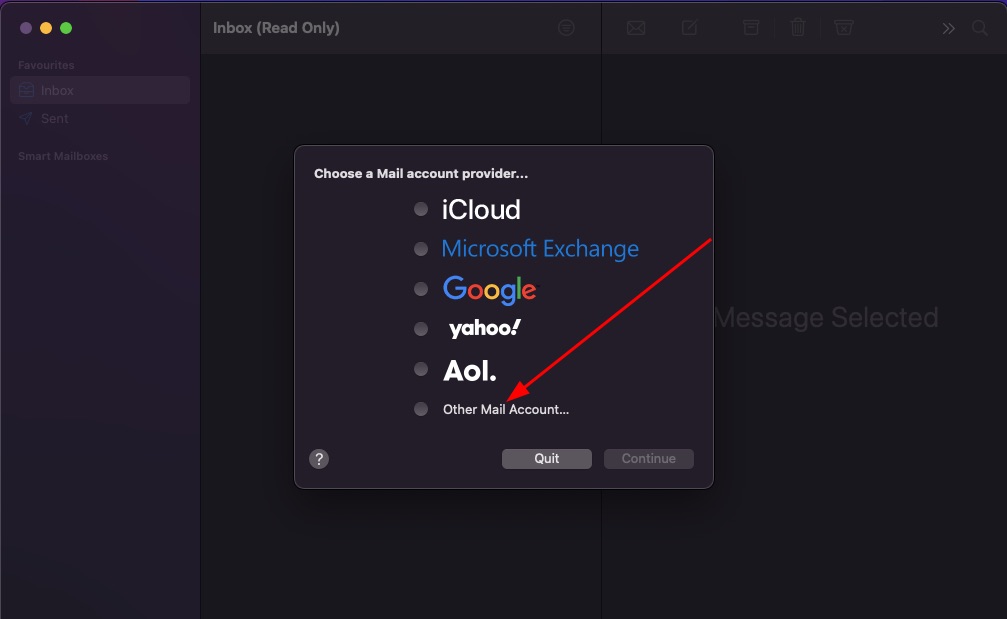
2. Choose your e-mail provider, in this situation click „Other Mail Account…“.
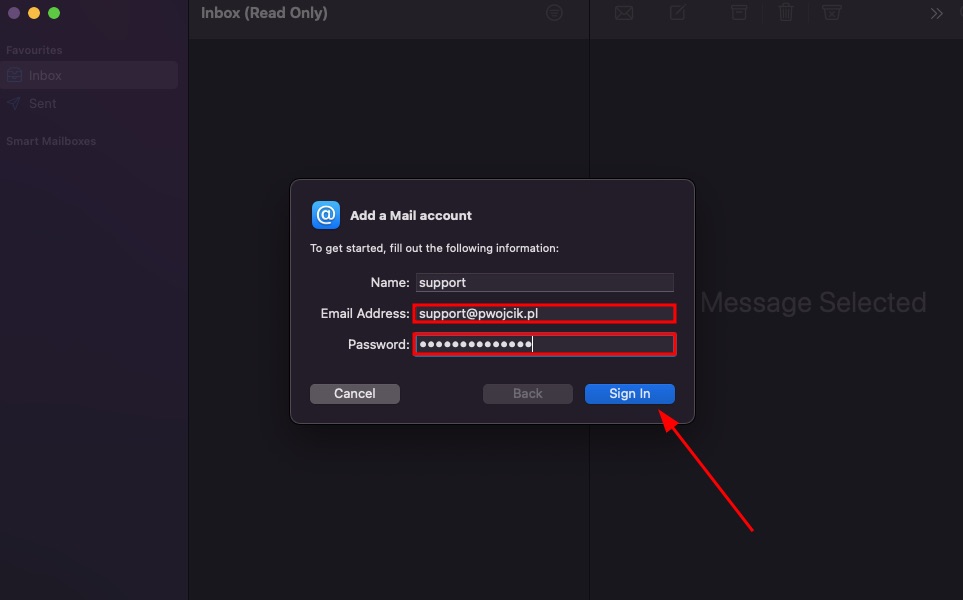
3. To start the set-up, enter your email address and password in the fields below. Then click „Sign In“.
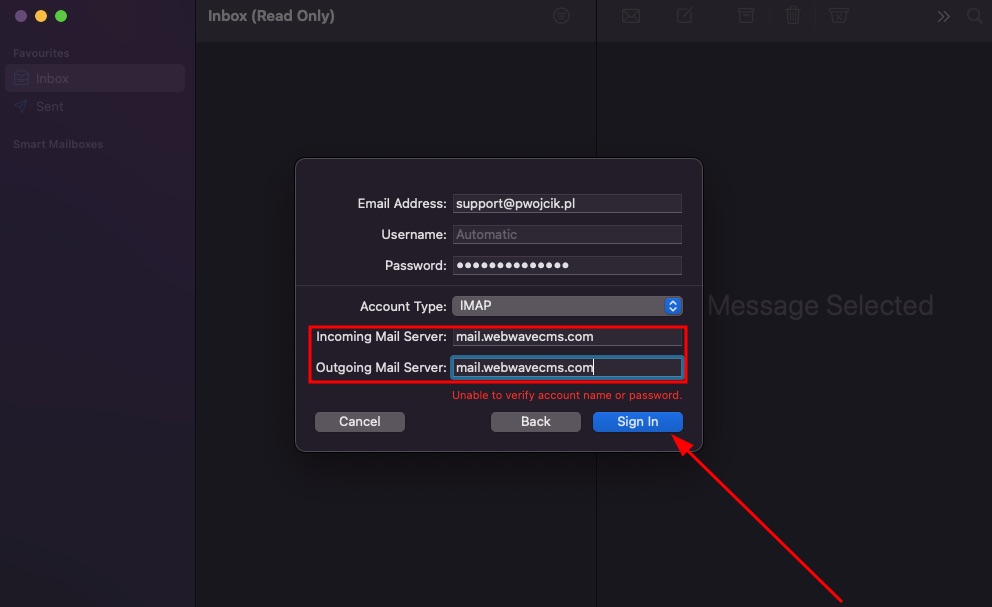
4. The next configuration step will be to fill in the fields responsible for sending and receiving messages:
Incoming Mail Server: mail.contact-form.info
Outgoing Mail Server: mail.contact-form.info
After filling in the fields, click „Sign in“.
5. Select the applications you will use through this account. Click „Done“.
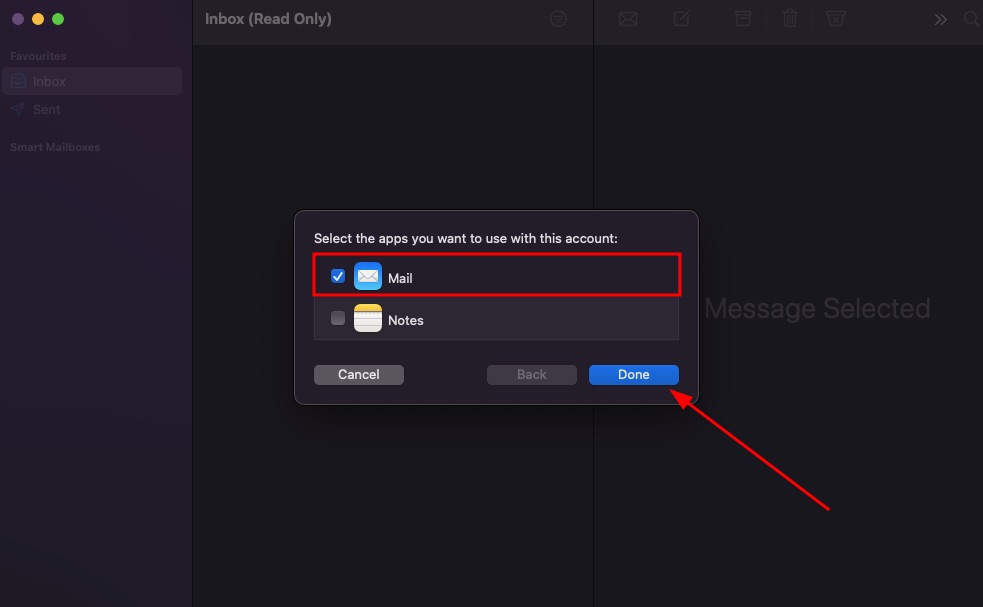
6. In the next step,select the first protection option.
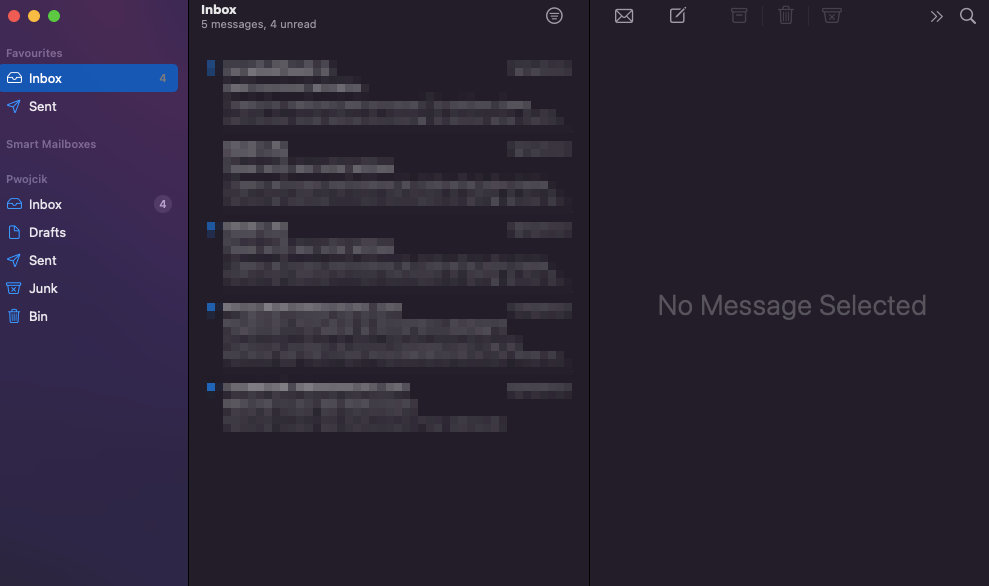
7. Congratulations! Your mailbox has been correctly added!
Configuration of your mailbox in iOS #
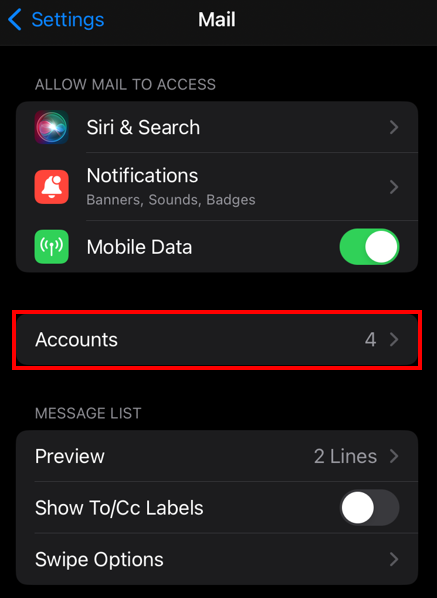
1. Go to mail settings on your device, then click „Accounts“
Path: Settings -> Mail
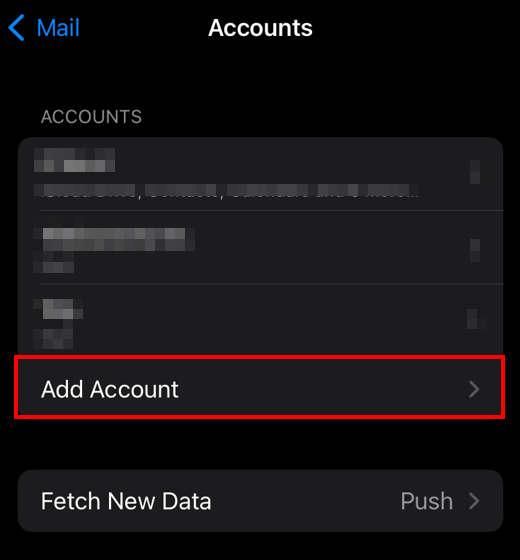
2. Click „Add Account“.
3. In the „Add Mail Account“ tab, choose „Other“ option.
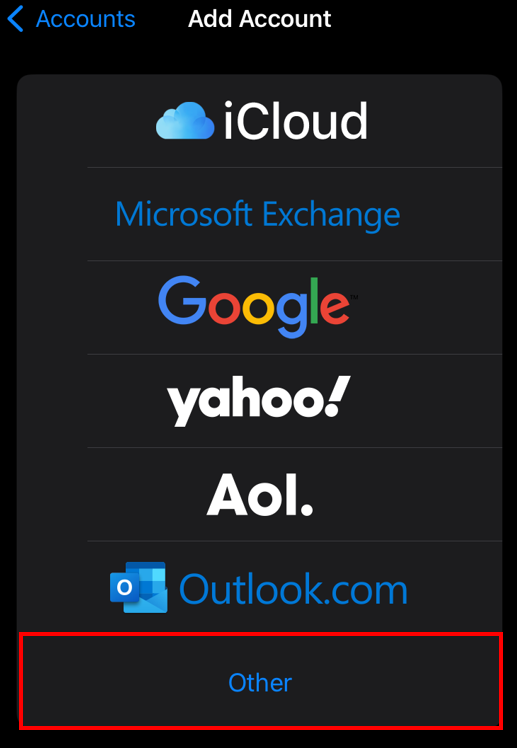
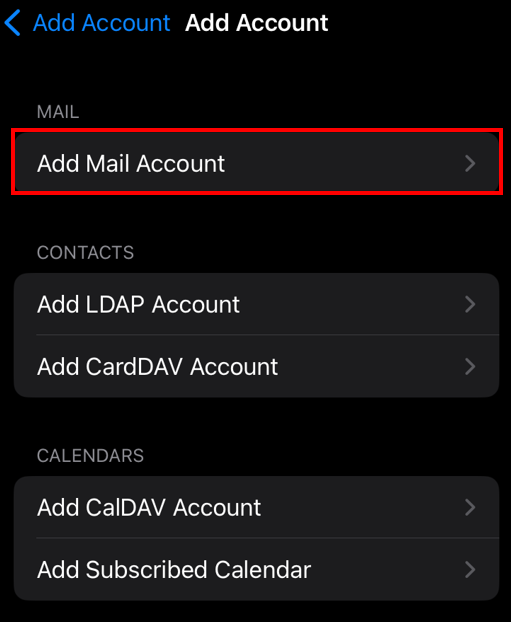
4. Choose „Add Mail Account“ option.
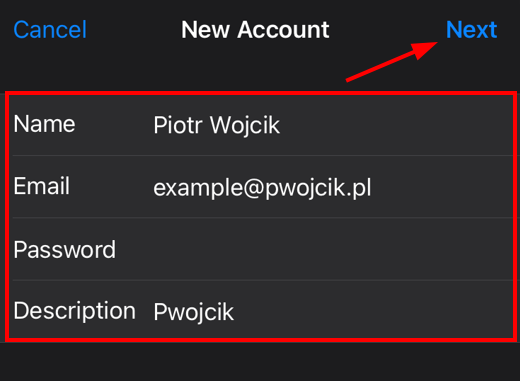
5. Fill in all the fields, then click „Next“
Name – the name of your account
Email – your email
Password – your email password.
Description – fill in the description optionally.
6.The next step of configuration will be to fill in the fields responsible for sending and receiving messages and fill in the fields:
Username – enter your email address.
Password – enter your email password.
Then fill in the fields:
Incoming Message Server / Incoming Mail Server: mail.contact-form.info
Outgoing Message Server / Outgoing Mail Server: mail.contact-form.info
7. Wait for verification and then select „Mail“ and click „Save“
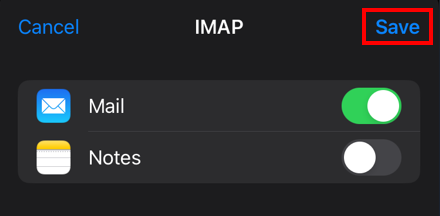
8. Congratulations you have added your mail to your iOS device.


