Building multilingual websites with SiteDu.de is incredibly simple. If needed, you can build additional language versions from scratch. However, we recommend copying the content from your default language and directly starting to translate. Why? When you create an additional language version of a website, changes made within it will not affect other versions. So, the best practice here is to primarily focus on the website style and content of one language version. And only after it’s done you may copy content and add language versions. All that’s left to do is translate the content. You won’t have to spend countless hours editing each version for style.
Create an additional language version of a website #
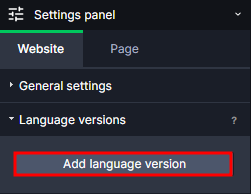
- In order to create an additional language version of a website, go to Settings panel -> Website -> Language version and click „Add languages version„
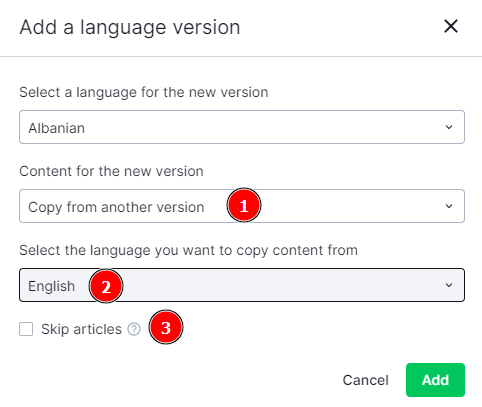
- In a new window select a new language.
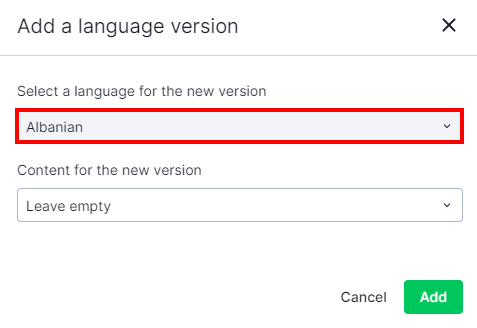
Option 1: Don’t copy content #
By selecting the „Leave empty“ option, you will create a new website from scratch.
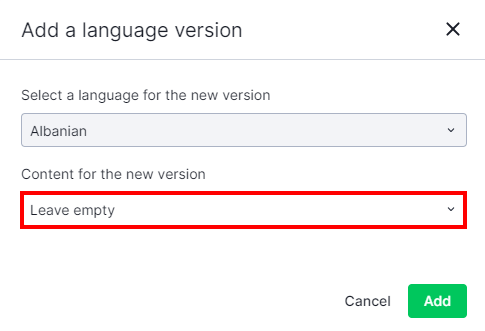
Option 2: Copy content (Recommended) #
By selecting the „Copy content from another version“ option(1), a new language version will be created as a copy of chosen language version(2). What remains to do is to translate its content into another language.
By ticking the box next to „Skip articles“ (3), the new language version will not be created with a copy of all articles created so far in the original language.
Add a language menu #
In order to allow users to easily choose a language version of your website, add a language menu from the toolbar on the left side of the builder.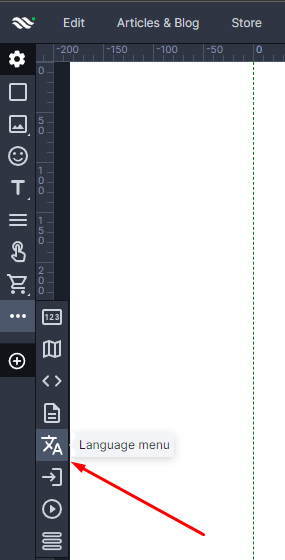
Language selector settings #
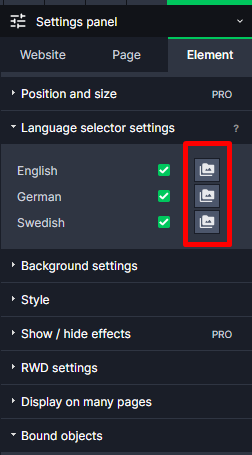
Enter languages menu and in the Settings Panel go to „Language selector settings“. Choose the languages (from your created versions of your website) that should be displayed in the menu. You can also change the thumbnails of the selected languages.
Set your Default language #
The default language of your website is a language version of your website which will be displayed when a user enters your website. For example, when you link your website to the domain yourwebsite.com and set English as the default language, visitors will be directed to the English version of the site upon arrival. Additional language options will be accessible via http://yourdomain.com/language. For instance, the German version can be found at http://yourdomain.com/de.
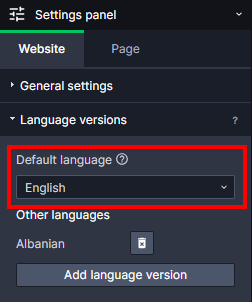
In order to choose a default language, select it on the „Default language“ tab:
Subpages URL addresses on different language versions
Let’s say you have your website in two languages – English and German. Each version has two subpages – home page and contact. The English language has been set as default. You have a domain mydomain.com. The URL addresses will look more or less like this:
For the English version:
http://mydomain.com – home page
http://mydomain.com/contact – contact
For the German version:
http://mydomain.com/de – home page
http://mydomain.com/de/kontakt – contact
Delete a language version #
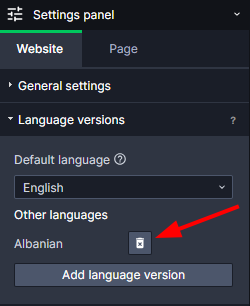
To delete a language version of a website, go to the „Default language“ tab and click „bin“ button, next to the chosen language. If you delete a default language, another one will automatically replace it.