


Managing appointments in different time zones can be difficult, but SiteDude Booking’s Time Zone feature simplifies this process. It allows for time zone settings in General Settings as well as for each employee, making it easy to coordinate schedules. This is especially useful for businesses with teams in multiple time zones, ensuring accurate appointment scheduling for employees and customers.
Global Time Zone #
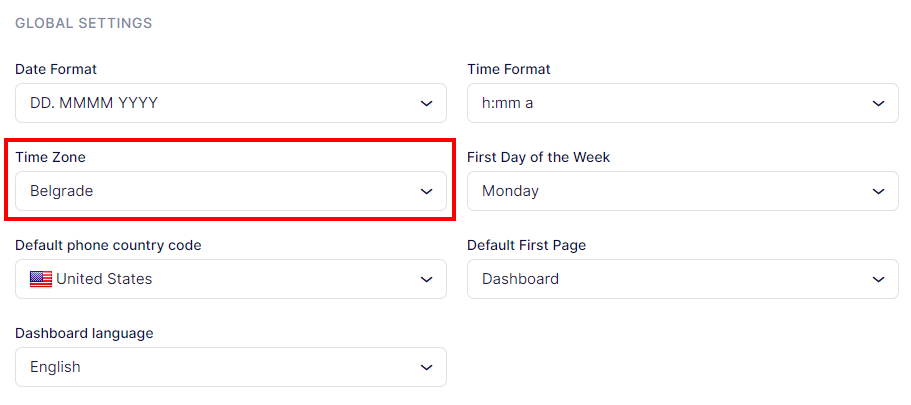
In SiteDude Booking’s General Settings, you can set the global time zone for your business. Simply navigate to the bottom of the screen to define the time zone that applies to your company. If this time zone applies to all employees, then you’re all set!
Employees’ Time Zone #
Employee time zones are crucial for businesses with global teams or those offering services across various time zones. SiteDude Booking’s Starter and Scaling plans allow employees to access their personalized dashboard, where they can set their time zone, working hours, special days, and time-off preferences. For users without dashboard access, administrative and super admin users can manage these settings.
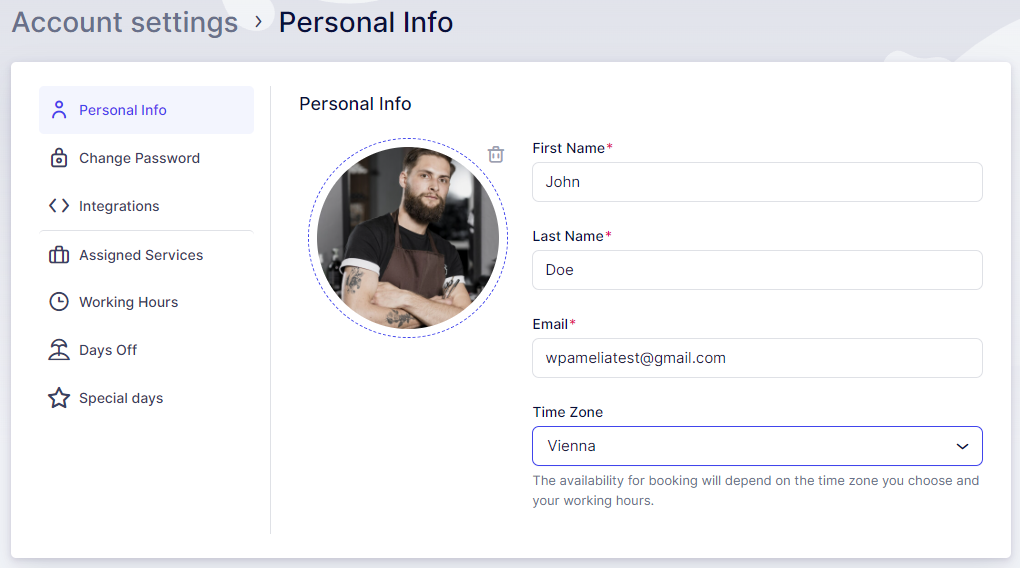
To set your schedule as an employee, log into the dashboard, go to Account Settings > Personal Info, and select your Time Zone. Then, navigate to Working Hours to define your availability. Appointments will display according to your time zone, working hours, days off, and special days. Customers can choose their time zone during booking, while administrators can set a default time zone for the admin dashboard to align appointments across different time zones (customer, employee, admin).
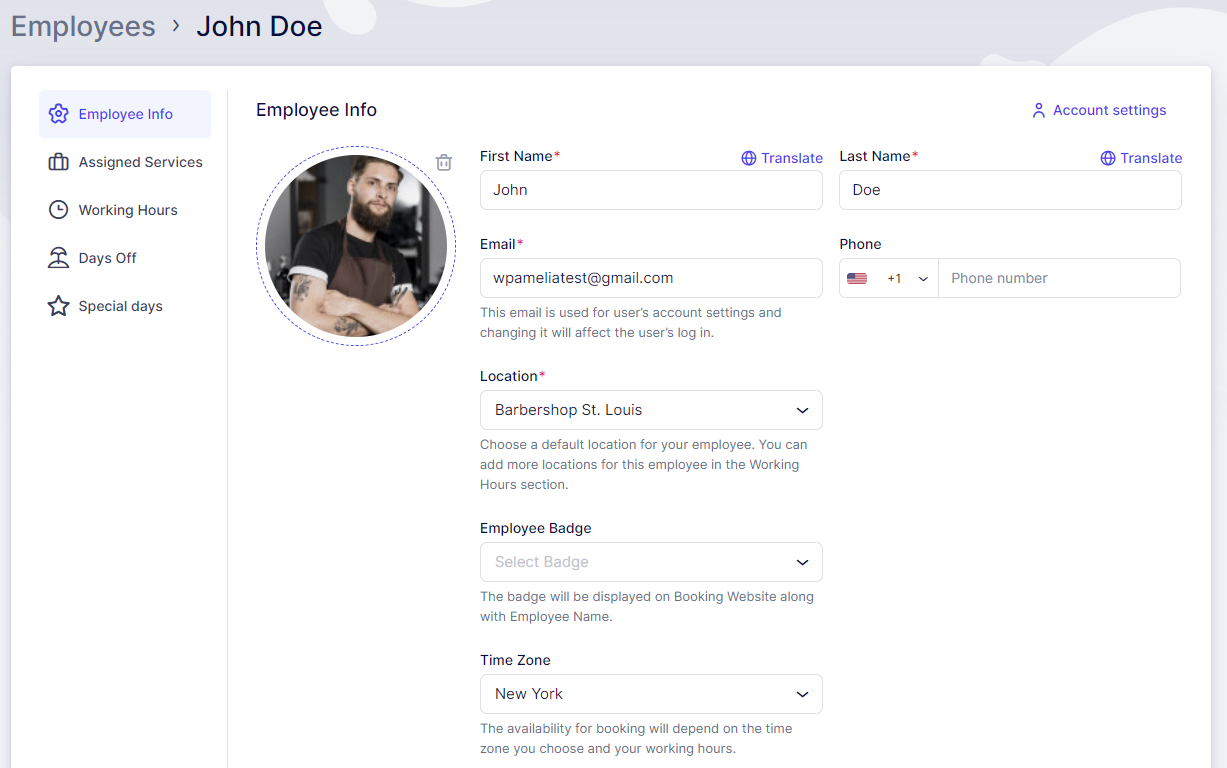
Admins are also able to configure the employee’s time zone in the Employees section when editing an employee. The “Time Zone” option, in this case, is located in the “Employee Info” tab.
Account Settings
Employee Info
The Working Hours page always displays the selected time zone above the schedule, ensuring clarity and avoiding any confusion.
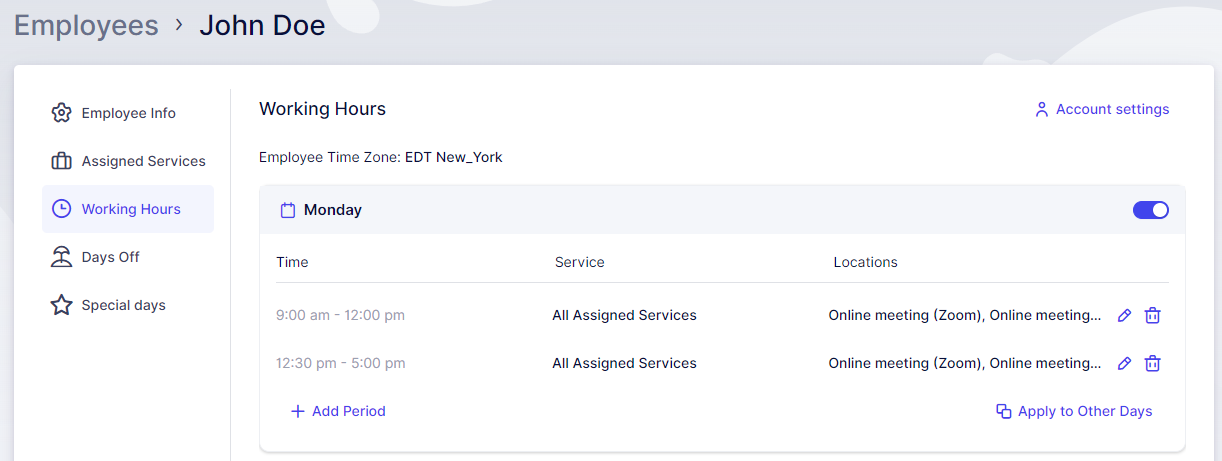
This time zone display applies when the employee has designated a time zone in their account; if no selection has been made, the Default Time Zone specified in the General Settings will be used.
Please note: Modifying an employee’s time zone after they have already designated one will impact their availability.
After carefully setting up all time zones and schedules, it’s important to mention that notifications are adjusted accordingly. This means customers will get notifications with dates and times in their own time zones, including timely reminders. Likewise, employees will receive notifications based on their personal time zones, making global operations smoother.


