


Compositions are used to easily prepare a page in the SiteDu.de builder. We can also add our elements to the compositions, which we can then use when editing another page or the current page.
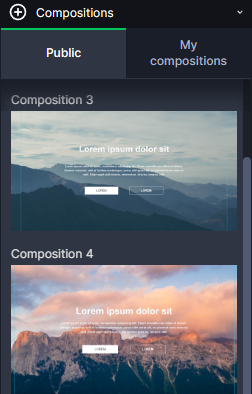
Compositions exist in the following sections:
- Menu
- Header Images with text
- Image with text
- Video with text
- Icons and Text
- Testimonials
- Text only
- Pricing tables
- Footer
How to use a composition #
1. Go to edit your page.
2. Under the elements‘ menu on the right side of the builder, click the composition icon.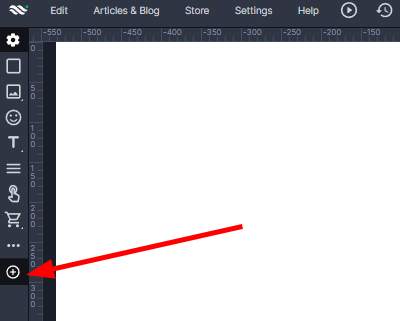
3. Select the composition categories that interest you – by clicking on it.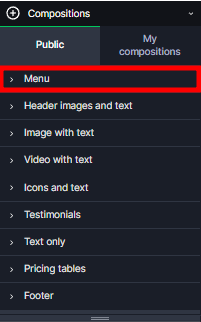
4. Click/drag the compositions that interest you.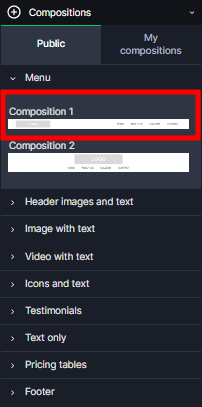
5. Your composition has been correctly added to the page!
How to add your own composition #
Once you add your own composition, you will be able to use it on any page you design.
- Go to edit your page.
- Under the elements menu on the right side of the builder, click the composition icon.
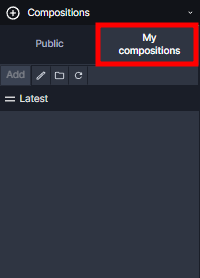
- Click the „My compositions“ tab
- Select the elements/groups you want to add to your compositions, then click „Add“.
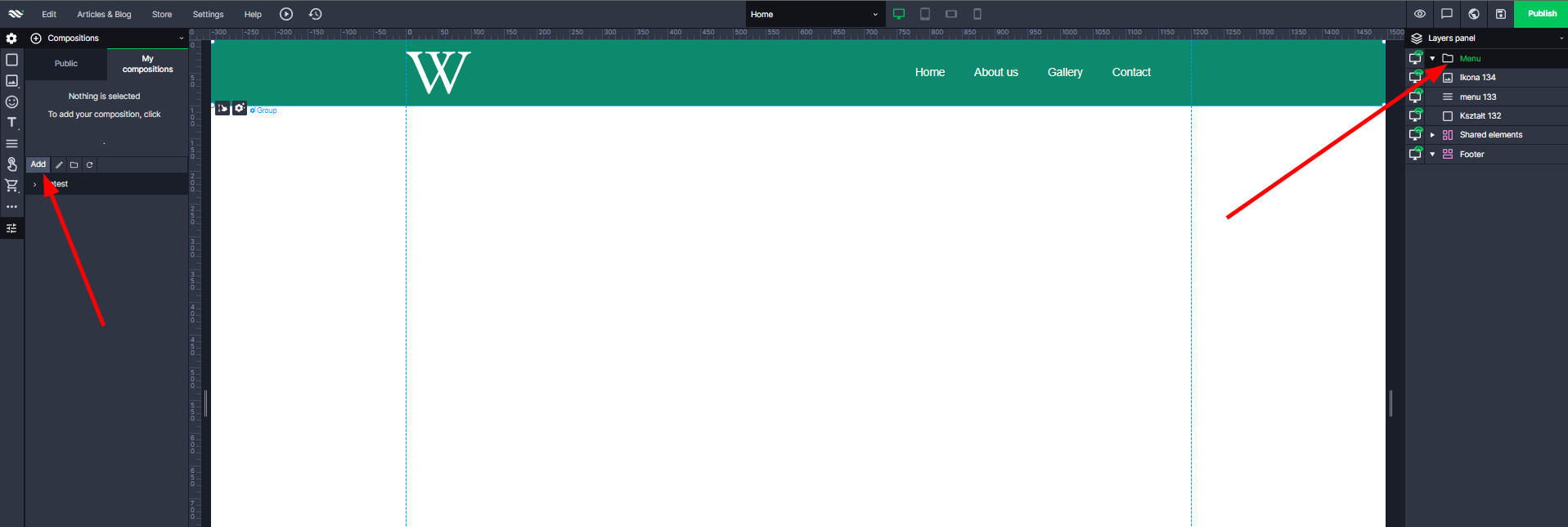
- To add your own composition to the page. Go to your compositions and drag/click it.
Composition Functions #
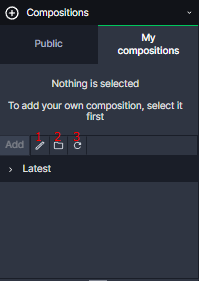
„Edit“ #
This button allows you to edit the composition category name, composition name, thumbnail, and remove the composition from the composition list.
Composition Category #
Edit the category name
a. Click the three dots next to the name, then click „Edit“.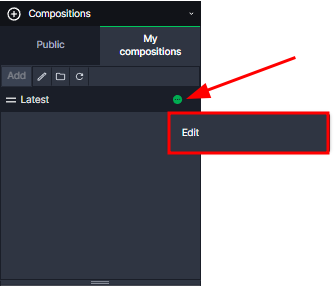
b. Then change the name of the composition, approve this change with the „Save“ button.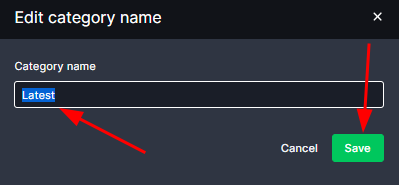
Add a Category
Add your composition tab. Then enter the name of your category and click „Save“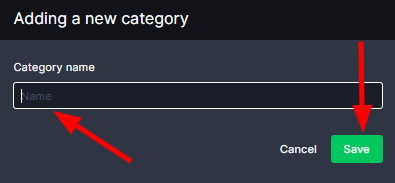
Deleting composition categories
a. Click the 3 dots, then click „Delete“.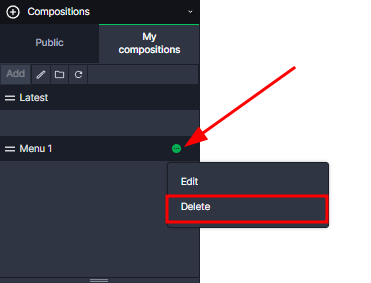
Attention! There must be more than 1 category for this function to show.
Changing the order of composition categories
Hold the composition category name and move it up/down (in edit mode).
Edit composition #
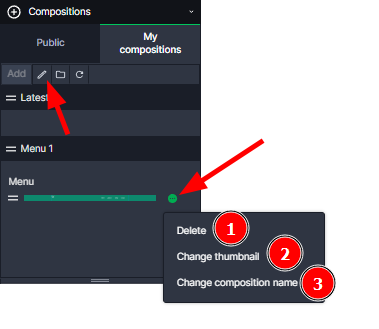
„Delete“ – A button that allows you to delete a composition.
„Change thumbnail“ – A button that allows you to change the thumbnail of the composition, by selecting an image from the media library.
„Change composition name“ – A button that allows you to give your own name to the composition.
Changing the order of compositions
Hold down the composition name and move it up/down (in edit mode).


