


The Sitedu.de Website Builder offers an advanced Web Creation System that allows users to have full control and flexibility in their website creation process.
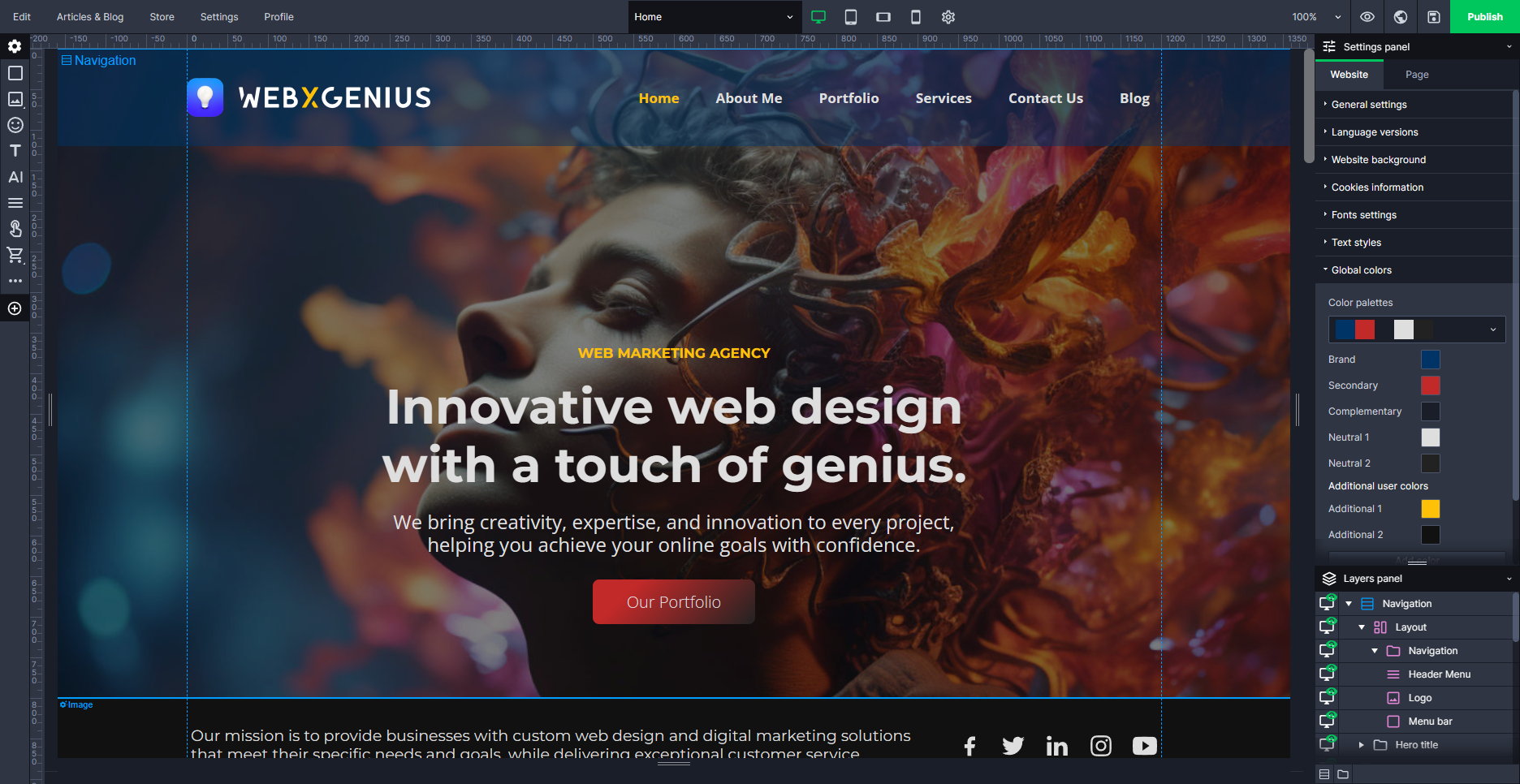
The Builder offers a multitude of editing possibilities, allowing you to customize every aspect of your website to your liking. However, with great power comes great responsibility. Using all functions adds more complexity to the website creation process and thus involves the risk of breaking layouts if not handled correctly. Therefore, we advise you to use the Builder with care. Make sure you understand the impact of the changes you’re making, and always keep the overall design and functionality of your website in mind.
In most cases, it is recommended to simply exchange text and images and keep all design settings.
If you’re unsure about any feature or need assistance, don’t hesitate to look through this Knowledge Base. If you don’t find what you require, reach out to our team. We’re here to help you create the best possible website for your needs.
Enable/disable view of advanced blocks #
Having too many options on the screen can be overwhelming at times. That’s why the advanced builder is not enabled by default. However, even when it’s activated, you can remove the editing panels from your view to fully concentrate on your website. You can either hover over the screen borders or keep the editing blocks fixed in your view. You can also rearrange the panels on your screen to place them wherever it suits you.
Editing blocks in the SiteDu.de Builder #
First, let’s take a look on the right side next to your website preview. Here, you’ll now find different panels.
Settings Panel #
The Settings Panel panel allows you to adjust different settings for the whole website, a single page, or an individual element. The available options depend on the selected element.
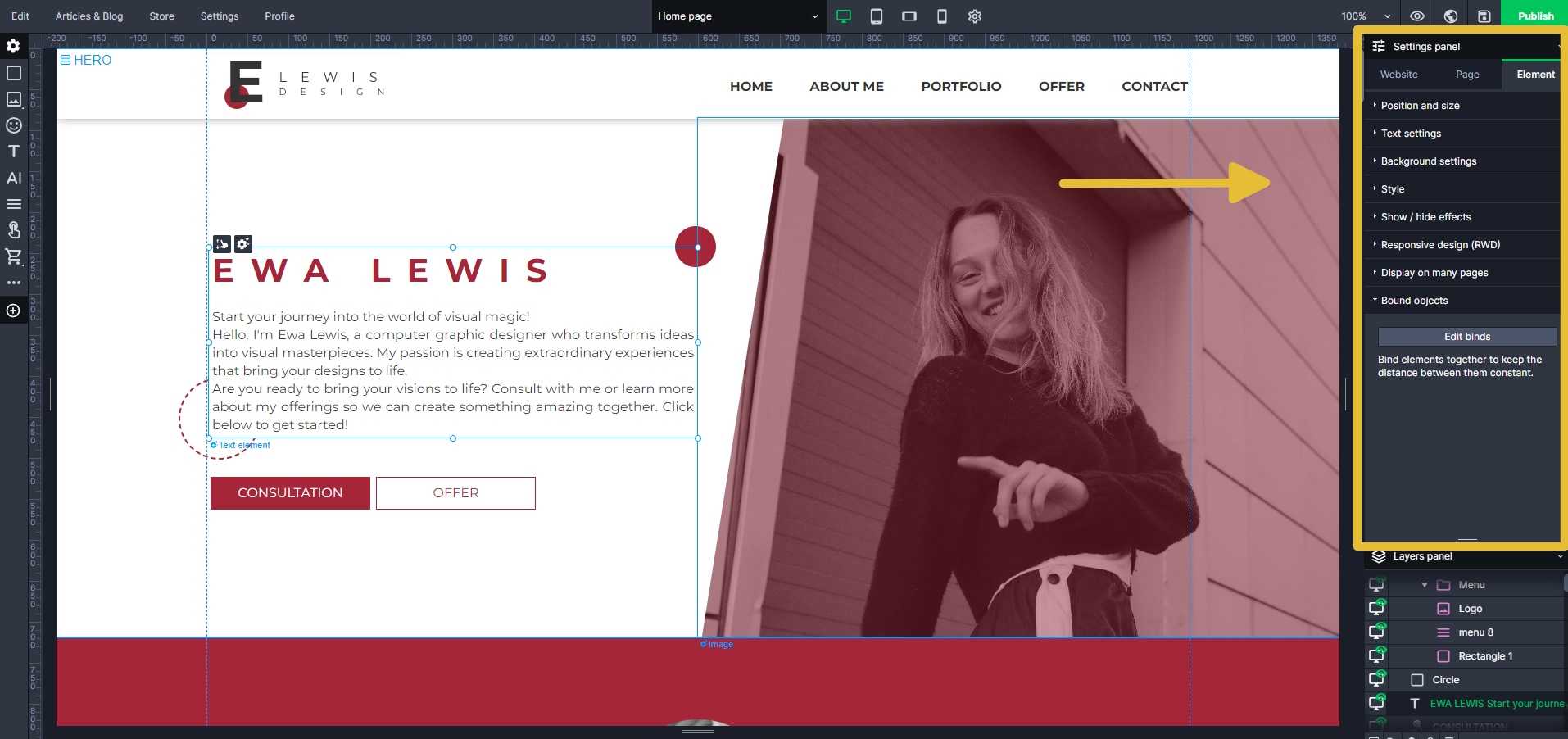
Check out this article to learn more about the Settings Panel.
Layers Panel #
In the Sitedu.de Website Builder’s Layers panel, you can arrange the order of your elements by moving them up or down in the list. This determines which elements are in front or behind others on your website. Elements higher in the Layers panel will cover elements lower in the list.
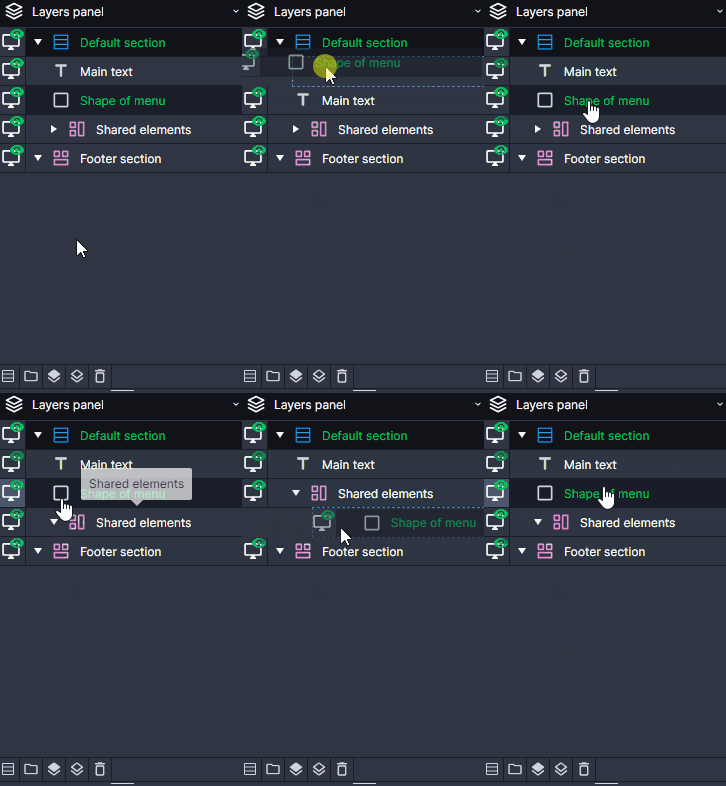
Find out more about the Layers Panel here.
Compositions #
Compositions are used to easily prepare a page in the SiteDu.de builder. We can also add our elements to the compositions, which we can then use when editing another page or the current page.
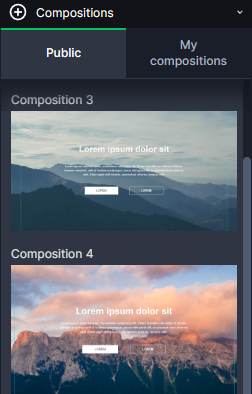
Here you can find out more on how to use compositions.
Elements Panel #
The Elements Panel provides a wide range of useful elements that can be effortlessly incorporated directly into your website. These elements are designed to enhance the functionality and visual appeal of your site, making it easier for you to create a professional and engaging online presence. Whether you need buttons, forms, or other interactive features, the Elements Panel offers a convenient way to customize and improve your website’s design.
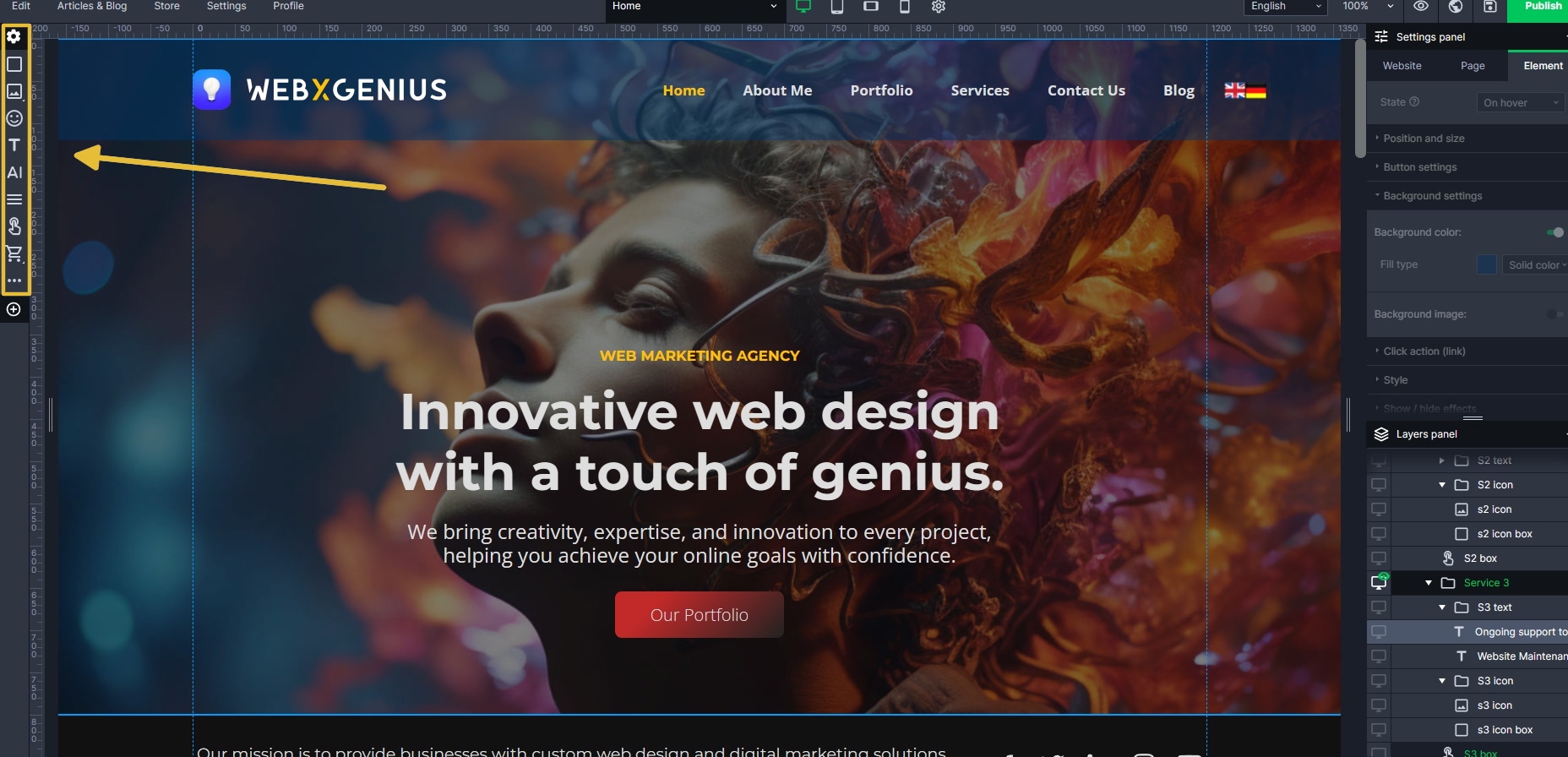
Check out this Knowledge base article if you want to find out more about how to add elements.


