In order to configure a mailbox in Thunderbird use the following mailbox setup:
Configuration of your mailbox in Thunderbird #
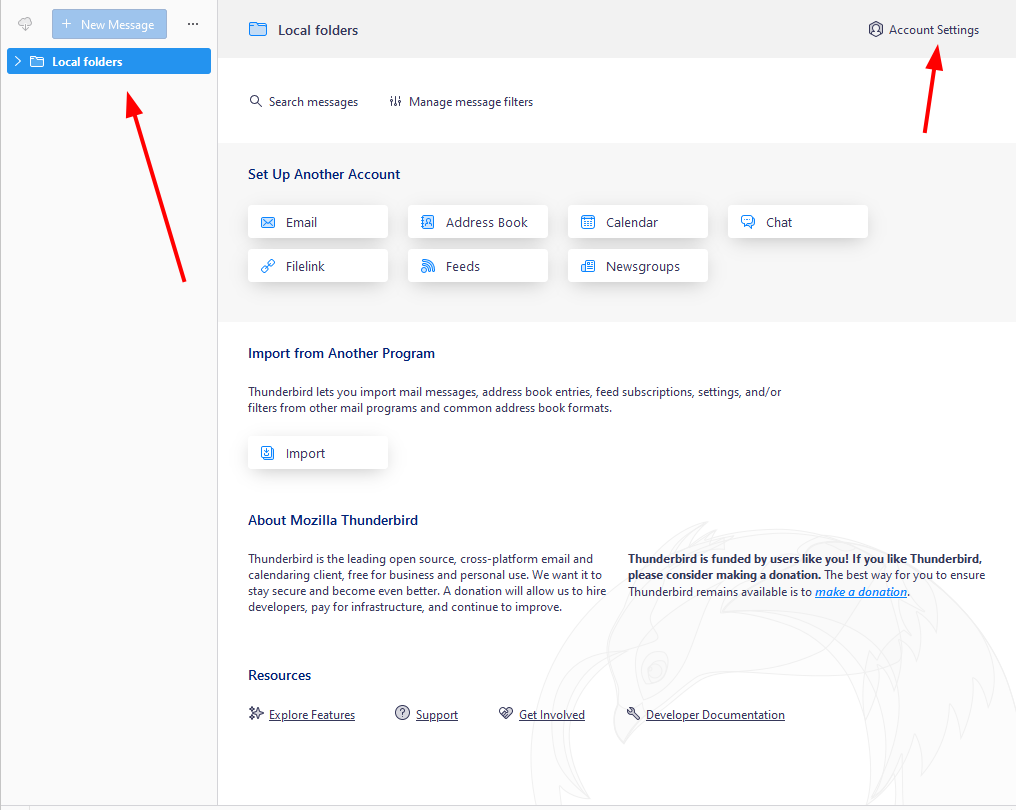
1. Open Thunderbird. If you do not have any account connected, go to step 4.
2. Click „Local folders“ located on the left side of the program, then go to „Account Settings“.
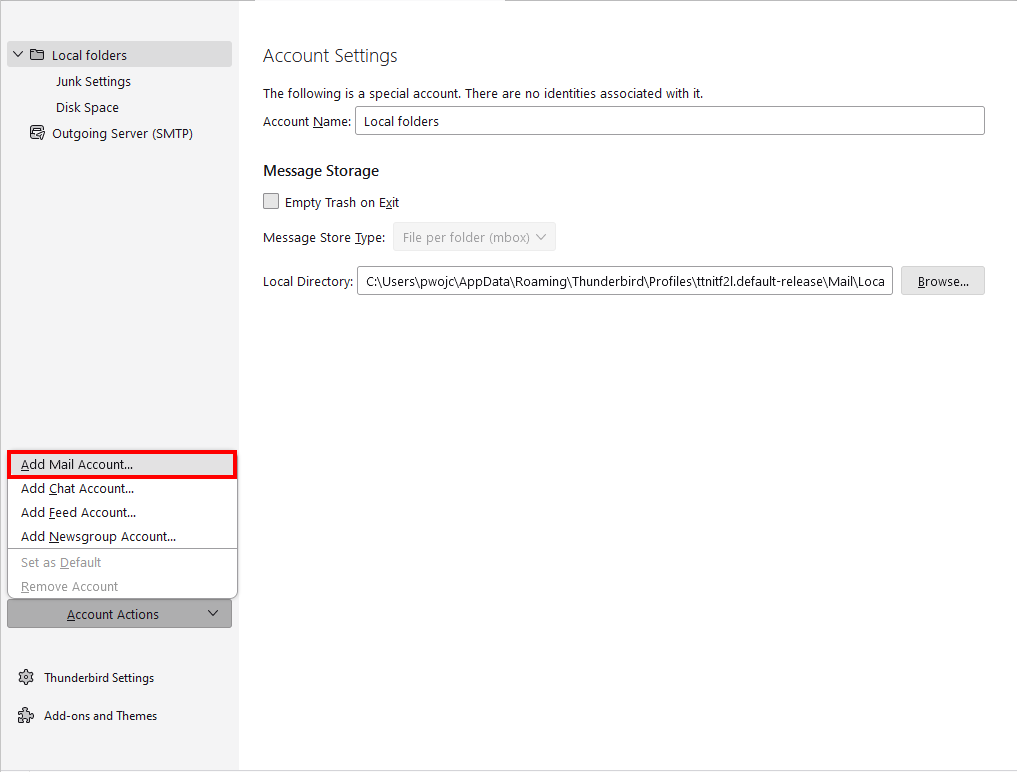
3. in the accounts configuration, select „Local folders“ then expand the actions tab and select „Add mail account…“.
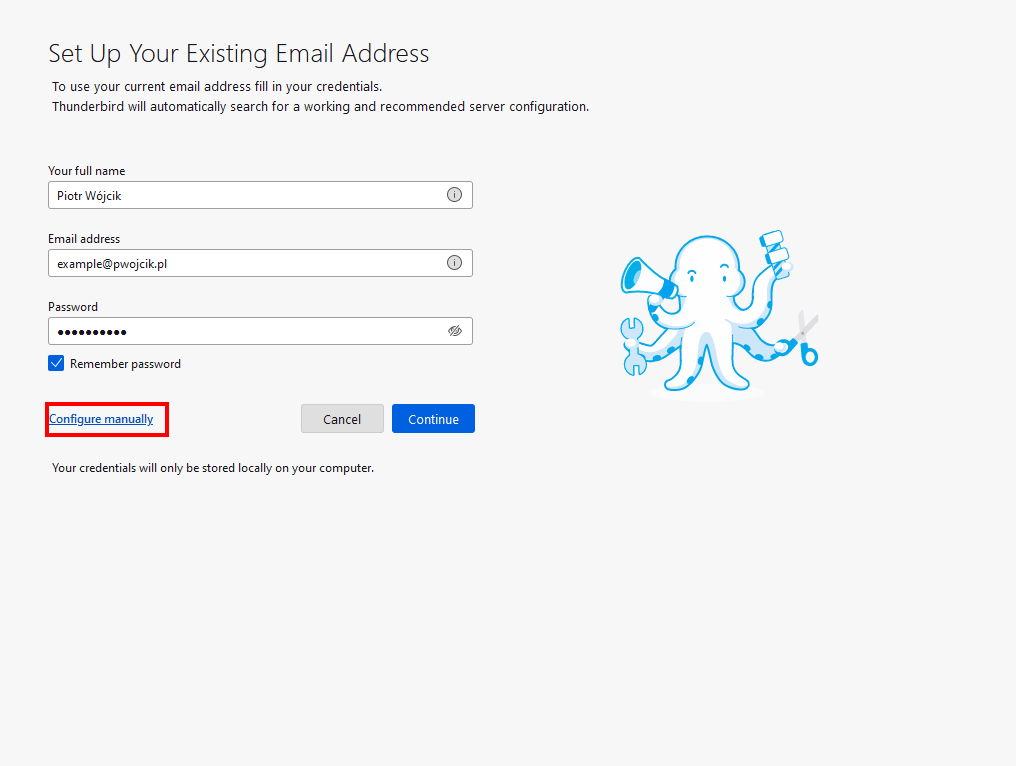
4. Fill in the fields, email address and password for your email, then click „Configure manually“.
5. Change the account settings according to the data for configuration (IMAP/SMTP Table). Click „Done“.
Attention! Select for: Connection security: – SSL/TLS ; Authentication method – Normal Password
For some devices or Internet connections, the SMTP port may vary. If the configuration fails, change the SMTP port to an alternative: 587 and set STARTTLS under „Connection security“. However, do not change the data in the IMAP protocol.
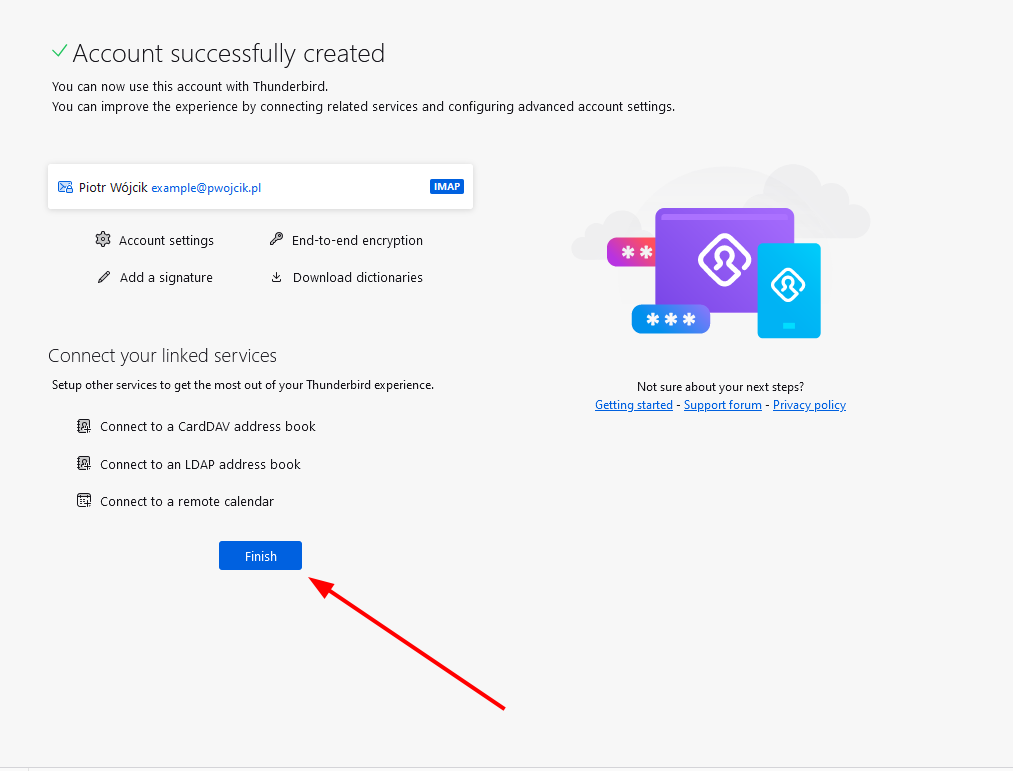
6. Your mailbox has been added correctly; to go to the preview of your mailbox, click „Finish“.