


Using the ‚Global colors‘ option in the SiteDu.de Website builder allows you to maintain a consistent appearance for all elements, enabling you to globally change colors in your project and quickly adjust the template to your preferences.
Please, only change the colors here, if you know what you are doing. Your changes affect the whole website. If you are looking for input for nice color palettes, look at this great website: https://colorhunt.co/
Color palette styles #
Color palettes are created automatically when a new page is created. The color palette is changed by clicking on the current palette and selecting another color palette, while the color in the palettes is changed according to the „Edit existing color“ section.

Available Global Page colors #
The following page colors are available by default:
Brand
| Element | State/edit |
| Button | Normal state |
| Add to shopping cart | Normal state |
| View shop cart | Normal state |
| Login | – |
| Website | Normal state; Active state |
| Blogsfeed | Read more/Text color |
| Formularz | Normal state/Send button |
Secondary
| Element | State/edit |
| button | Hover |
| Add to shopping cart | Hover |
| View shop cart | Hover |
| Website menu | Hover |
| Form | Hover/Send button |
| Blogsfeed(edit) | |
| Data | Text color |
| Single article | Border |
| Pagination | Selected pagination index(background) |
| Pagination | Pagination index |
Neutral 1
Neutral color 1 is responsible for the color of text styles. You can edit these styles in the „Text style“ tab.
| Element | State/edit |
| Extensive text | Text color |
| Header | Text color |
| Counter | Text color |
| Website menu | Text color – without state |
| Blogfeed(edit) | |
| Header | Text color |
| Content | Text color |
| Form(edit) | |
| Inputs | Border/Color |
Neutral 2
| Blogfeed | |
| Pagination | Selected pagination index/Text color |
| Form(edit) | |
| Inputs | Background color |
Manage your colors #
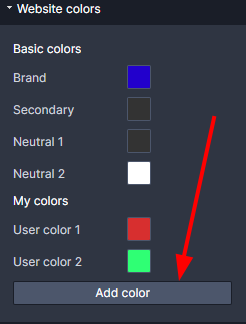
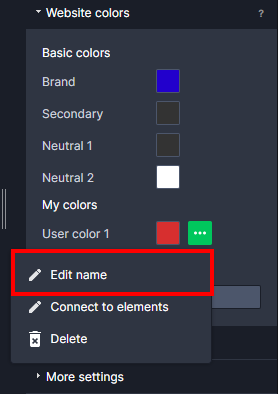
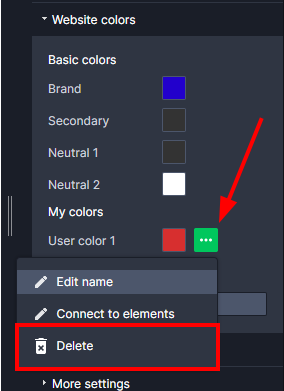
Want to assign a color other than the base color to an element? You can have as many user colors as you want, you can add them, delete them and edit their name.
Adding your own color
 #
#
Edit an existing color #
To edit the color of an existing color, click on the preview of that color and select the appropriate color using the color palette or HEX code.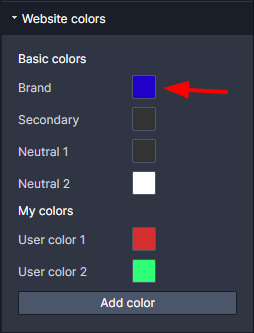
Edit color name
 #
#
Color Removal
 #
#
How to assign a color to an element #
Instead of a history of recently used and favorite colors, you now have page colors that you can assign to several elements and globally modify their color in the „Global colors“ tab if necessary.
Assigning a particular color to an element is very simple:
Graphic elements:
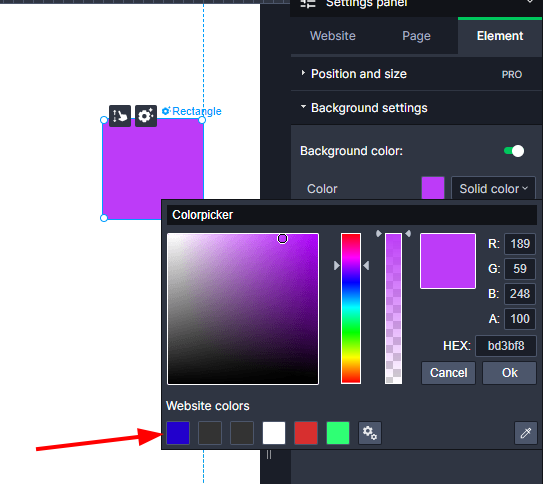
Text elements:
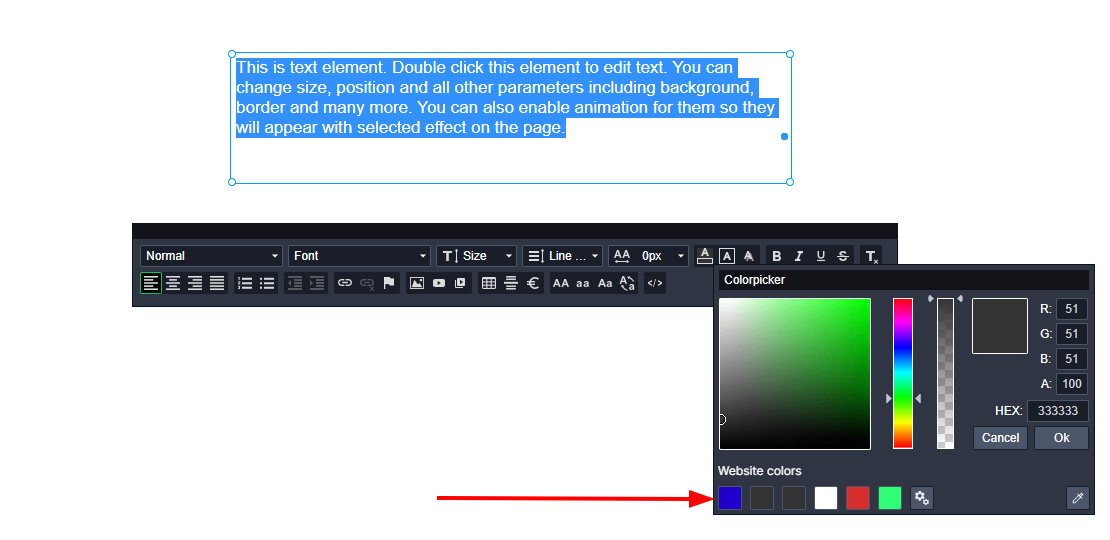
The selected page color will be marked with a white dot.
ATTENTION! When you change the page color in an element, the element will inherit the new color and react to its change.
Connecting page colors to existing elements #
Do you have a site, or are you using a template and would like to change the layout? Take advantage of the „Connect to elements“ option. This feature allows you to locate and change the color (globally) of elements that have the same color as the selected page color.

Attention! That we can use a pipette to set the same color (only works in chrome).
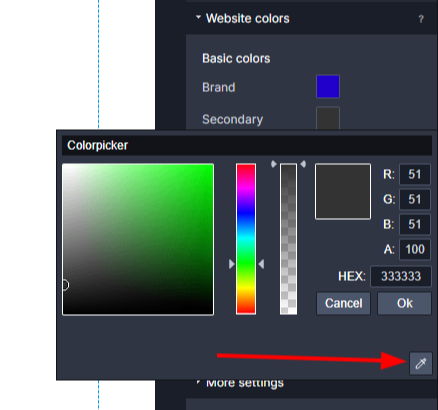
We click this icon, then hover over the selected element from which we want to acquire the color. After acquiring the color, we click „Ok“.


