


With SiteDu.de builder, you can incorporate a „Form“ element that enables you to establish communication with users effectively. By utilizing this element, you can effortlessly prompt them to answer your questions, fill out specific fields, and conveniently send their responses to a designated email address.
Add a form to your website #
Add a form in the toolbar on the left side of the builder. All you have to do is to drag a form icon and drop it on the website.

A new form has two default fields. The first one is for e-mail, the second one is for leaving a message. A Button „Send“ sends the message to an earlier specified e-mail.
Form settings #
After clicking on a form, you will be able to edit its style in the Settings panel.
States of the Submit button #
You can adjust submit a button style depending on its state:
- Normal – button style before a user sends a form.
- Hover – button style when a user hovers over it.
- After sent – button style when a user sends a form.
- On error – button style when a user sends a form, but an error occurs for example, when a user didn’t fill one of the required fields.
Spaces #
You may set different spaces between form rows in pixels in the form settings.
Labels #
One may also set a label alignment in respect to a field of the label.
Edit your Form #
In order to edit a form, click on it and select „Edit content“ under the Form settings bar on the settings panel.

Add a form element #
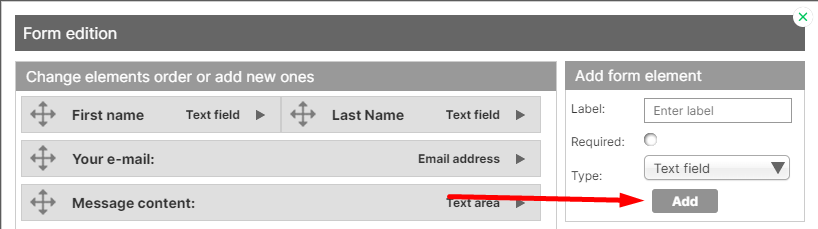
To add a form element, in a new window select „Add form element“ and type a label name, tick the box if the field is required and choose its type.
You can add the following elements:
- Text field
- Text area
- Select (drop down)
- Select (multiple)
- Date
- File
Then click the „Add“ button:
Remove a form element #
In order to remove a form element, unroll its details and select „remove a form element“ or just drag and drop it out of the window.

Move the form elements next to each other #
You can grab the element and put it next to each other (only two in one line).

Change order of form elements #
To change order of form’s elements, click on the selected field and move it to the chosen place in your form.
Edit a form’s element #
In order to edit a form element, unroll its details and set:
- Label – field description.
- Placeholder – dispayed text when a field is not filled out. Entering even one character removes a placeholder.
- Required – whether a field should be compulsory.
Label and placeholder can also be edited by double-clicking on them and entering text.

e-mail Settings #
To edit a form, click on it and select in the Setting panel, Form settings bar button „Edit content“.

The e-mail title sent from a form can be set in „E-mail settings“ on the right side of the Form edition window.
Form recipients are the people who will get an e-mail when somebody fills out the form and sends it. You can set more than one recipient, entering each one in a new line on the right side of the Form edition window.

Change form style #
Change a label style
To set a label style, double-click on it. From now on, every change made in the Settings panel and text editor will apply to every label.
Change an inputs style
To set an inputs style, double-click on any input field. From now on, all the changes made in the Settings panel and text editor will apply to every input field.
Change a submit button style
In order to set a submit button style, double-click on it. In the Settings change its color, borders and more.
Change the displayed text after sending a form
To enter the text which will be displayed after a user sends a form, in the Settings panel change the state of submit button from „Normal“ to „After sent“. Double-click on the form and from now on, every change you make in terms of text content or button style will only apply in „After sent“ button state. You can change button state „On error“ style exactly the same way.

Useful information #
If your form has a field where users input their e-mail address, then when answering to a message sent from the form, the recipient will be automatically identified with the e-mail address indicated in the form by the user.
What is a placeholder?
A Placeholder is a text displayed in form input fields when a user hasn’t filled them out yet. Typing even one character makes placeholder disappear, but deleting it makes it visible again.


