


Layers are a fundamental concept in design and play a crucial role in organizing and arranging elements on your website. Let’s explore how layers work in a more intuitive way.
What are layers? #
Imagine you’re creating a collage with different pieces of paper. Each piece represents an element on your website, such as text, images, or buttons. When you stack these pieces of paper on top of each other, you create layers.
Now, think of these layers as transparent sheets. The higher a layer is in the stack, the closer it is to the viewer. Just like in the real world, if one sheet completely covers another, you won’t be able to see what’s underneath. However, if there are holes or transparent areas in the top sheet, you can see the elements underneath.
In the Sitedu.de Website Builder’s Layers panel, you can arrange the order of these layers by moving them up or down in the list. This determines which elements are in front or behind others on your website. Elements higher in the Layers panel will cover elements lower in the list.
Layer and element
By adding a new element, the SiteDu.de builder will automatically generate its corresponding layer. When you choose the element, you simultaneously select the layer, and vice versa. It’s crucial to note that deleting the element will also delete the layer.
Change layer name #
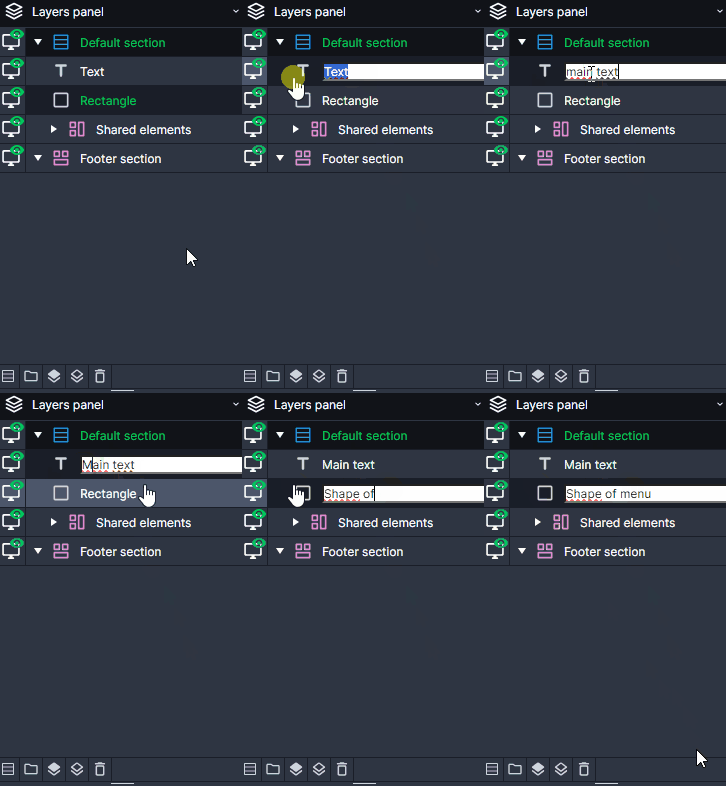
Default layers names can be misleading. Luckily, you can freely change them. In order to do it, double-click on the name on the layers list and enter a new one.
It is good practice to match layers names with their functionalities, for example, „offer content“, „image of a grumpy cat“ or „main menu“.
Change layers order #
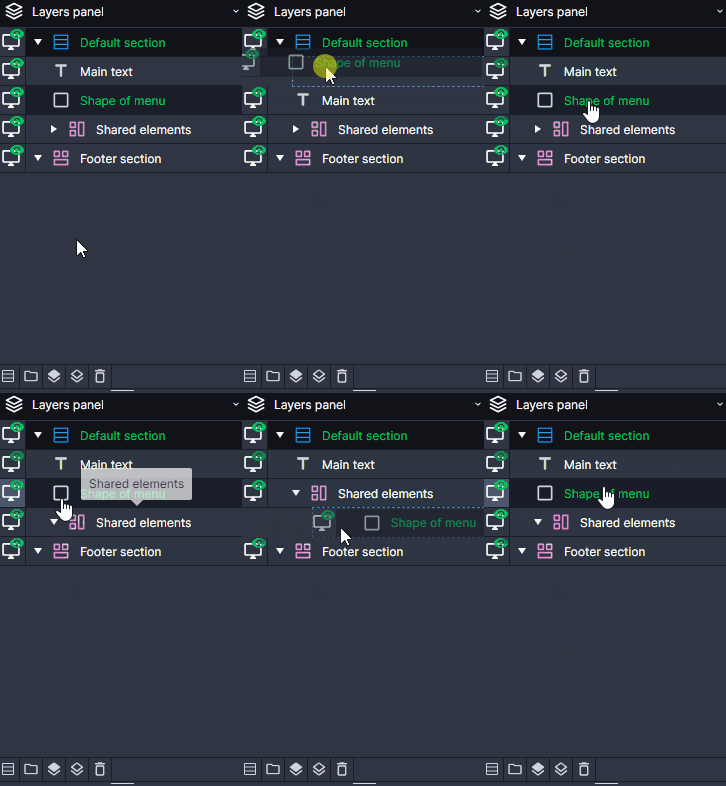
To change layers order, drag a layer and drop it in a new place on the list.
Hide a layer #
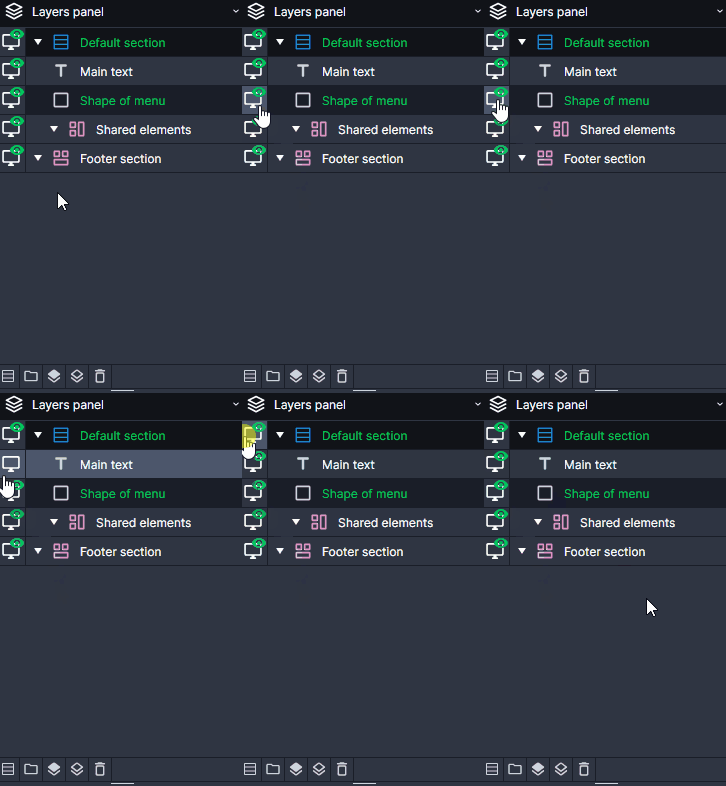
In order to hide a layer (and the element), go to the Layers panel and click on the green eye icon. The eye will disappear just like the element on a website.
Select many layers #
To select many layers, press Ctrl and click on them. If you want to select layers in a certain interval, select the first one, press Shift and select the last one. All in between will get marked.



